Click View > Snap to access ‘snap’ toggles – snap to grid, snap to guides, and snap to objects.

Use Standard > Options to access application options for design view, grid & guides, and other settings.
|
|
Click View > Snap to access ‘snap’ toggles – snap to grid, snap to guides, and snap to objects. |
|
|
Use Standard > Options to access application options for design view, grid & guides, and other settings. |
The Snap feature in EmbroideryStudio helps you place points and objects with absolute accuracy while digitizing. Instead of carefully nudging objects into place, you can let the software ‘snap’ them automatically to nearby grid lines, guides, or other vector and embroidery object outlines. Snapped elements are highlighted, so you always know exactly where your point is landing. This makes it faster to create neat, aligned, and symmetrical embroidery designs.
Toggle ‘snap’ options via the Snap droplist on the View toolbar.

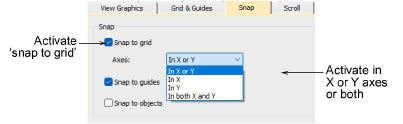
Adjust Snap settings via the Options > Snap tab.
|
Option |
Details |
|
Snap to grid |
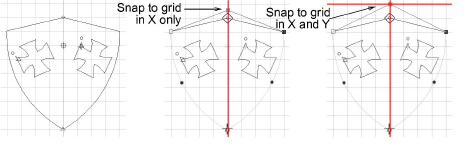
Reference points, control points or leading edges of objects snap to grid during digitizing, sizing, reshaping, or positioning operations. Choose a snap method. You can choose whether to activate in X only, Y only, X or Y, X and Y axes. |
|
Snap to guides |
‘Snap’ can be set for guides independently of grid lines. Reference points, control points or leading edges of objects snap to guides during digitizing, sizing, reshaping, or positioning operations. |
|
Snap to objects |
Easily snap points to edges, paths, and centers of existing embroidery objects for faster, more accurate alignment. |
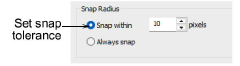
Adjust snap sensitivity to suit your workflow, or force snapping when you need absolute accuracy.
Tip: To temporarily disable Snap options as you digitize, hold down the Alt key.
3Display grids, rulers & guides
Products
EmbroideryStudio Add-ons
Solutions
Learning
Support
Connect
About Wilcom