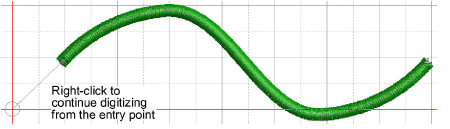
Use Graphics Digitizing > Continue Digitizing to continue digitizing selected objects from the exit point. Right-click object to continue from the entry point.
|
|
Use Graphics Digitizing > Continue Digitizing to continue digitizing selected objects from the exit point. Right-click object to continue from the entry point. |
EmbroideryStudio allows you to continue adding sections to the same object after pressing Enter. This is ideal for satin columns (Column A/B/C) or outline stitching, including beads or sequins.
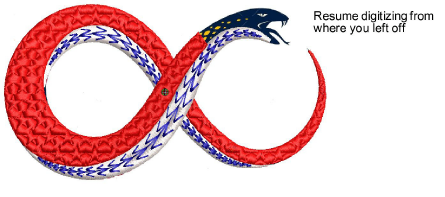
Use the feature when you need to redirect, add detail, or extend an object, while keeping it as one editable element for smooth joins and consistent properties. There are two main use cases...
To resume digitizing without starting over, simply click the Continue Digitizing tool. By default, digitizing resumes from the exit point.
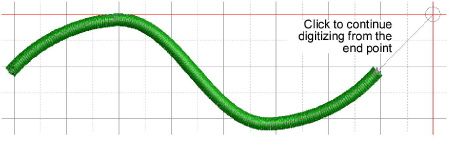
To continue from the entry point, right-click the tool instead. Press Enter to complete the object or Esc to cancel.
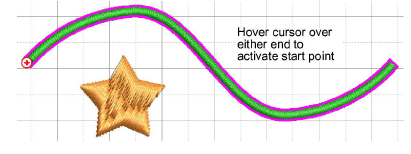
If you’ve already completed an object and want to extend it:
3Select the object, then click (left or right) the Continue Digitizing tool. For ‘power users’, shortcut keys [`] (grave accent) or [Shift + `] do the same thing.
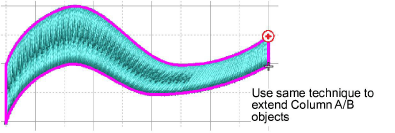
3Alternatively, select the tool first, then hover over the object you want to extend. A + sign appears at either end, depending on cursor position. Click to start digitizing.
These techniques apply equally to Column A/B objects.
3Seamless joins: Extending one object avoids unwanted gaps and overlaps, improving stitch flow and machine efficiency.
3Consistent properties: Because it remains a single object, global changes – e.g. satin width or underlay – apply uniformly, reducing rework.
3Cleaner workspace: Fewer objects keep the Color-Object List tidy and easy to manage.
3Digitizing outlines & details
Products
EmbroideryStudio Add-ons
Solutions
Learning
Support
Connect
About Wilcom