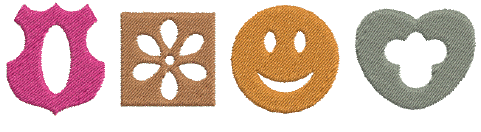
In EmbroideryStudio, you digitize free shapes with turning stitches with the all-purpose Complex Turning tool. Use the Complex Fill tool for free shapes with fixed stitch angles. By digitizing further internal boundaries, you can create shapes with holes in them.
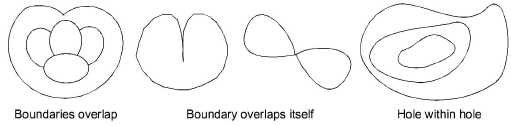
Boundaries in complex shapes should not overlap or intersect. The shapes below, for example, cannot be successfully digitized.
3If you make a mistake, press Backspace to delete the last point.
3Press Esc to undo all new points. Press Esc again to exit digitizing mode.
3For fast, accurate alignment, adjust Snap settings via the Options dialog. To temporarily disable Snap options as you digitize, hold down the Alt key.
3To temporarily disable Snap options as you digitize, hold down the Alt key.
3Use Auto Scroll to scroll automatically within the design window while digitizing.
3Hold down the Shift key to temporarily deactivate Auto Scroll.
3Use the Ctrl+Shift+A key combination to quickly toggle Auto Scroll on/off.
3Add holes to free-form shapes
Products
EmbroideryStudio Add-ons
Solutions
Learning
Support
Connect
About Wilcom