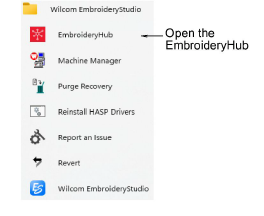
Double-click to start EmbroideryHub.
|
|
Double-click to start EmbroideryHub. |
Setting up an EmbroideryConnect network is easy…
3A single device is required for each embroidery machine.
3A dedicated network PC acts as the ‘hub’ and runs the EmbroideryHub software.
3All EmbroideryConnect devices are configured on this PC.
3All secondary PCs access the EmbroideryConnect network via the EmbroideryHub.
1Ensure the computer has an active internet connection.
2Start EmbroideryHub from the desktop icon or the program group.
When first run, the device list in the EmbroideryHub main window is empty.
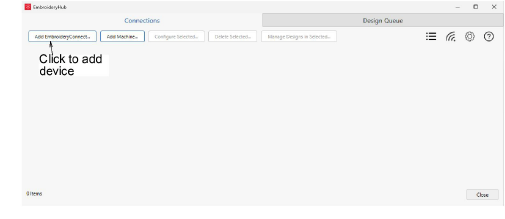
3Click Add EmbroideryConnect.
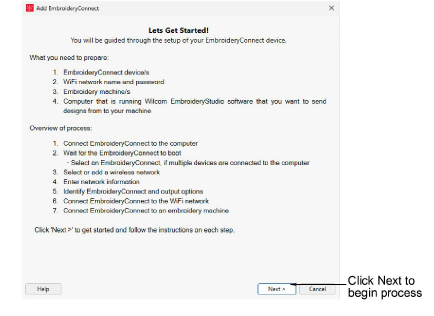
4Click Next >. The below dialog will appear.
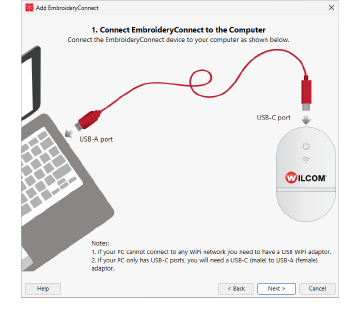
5Plug your EC device into the computer via the cable connected to the USB-C port of the device.
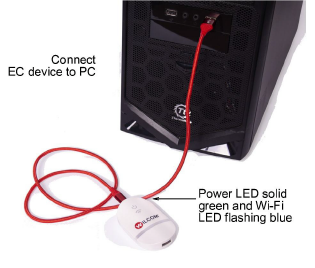
6Click Next >. The below dialog will appear.
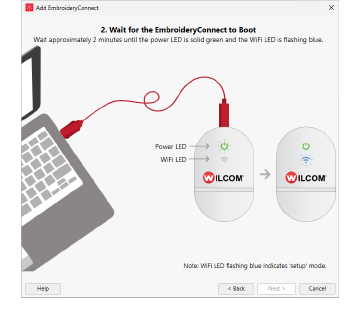
7Ensure all lights are in ‘Setup’ mode as prompted. When the power LED is solid green and the Wi-Fi LED is flashing blue, the device has finished booting. This generally takes about two (2) minutes.
8Click Next >. The below dialog will appear.
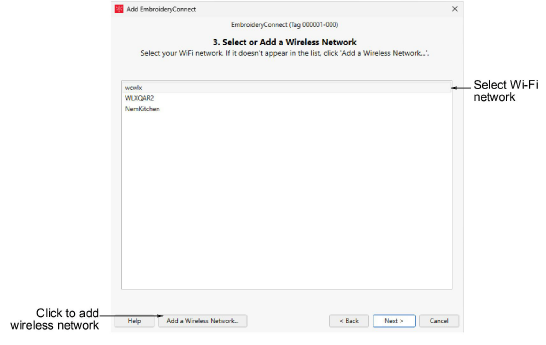
9Select your Wi-Fi network and click Next. If your Wi-Fi network does not appear in list select the Add a wireless network... button.
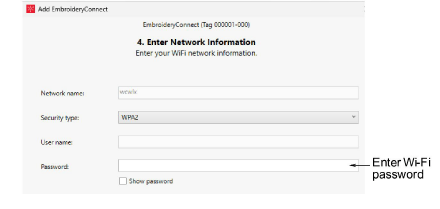
10Enter the Wi-Fi password and click Next >.
11Identify the EC device and specify output options.
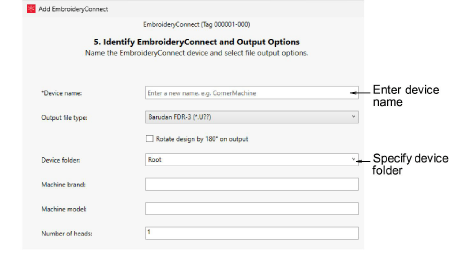
Options include:
|
Option |
Function |
|
Device name |
Give the device a name associated with the connected machine – e.g. ‘Tajima #2’. |
|
Output file type |
Specify the machine file type for the selected machine – e.g. *.PES. Design files will be converted on-the-fly to this format. |
|
Rotate design |
If the machine is dedicated to cap designs, tick this option. The design will be auto-rotated 180° on the machine. |
|
Device folder |
Specify the folder on the device if different to the ‘root’ folder. Machine requirements are the same as those for transferring a design via normal USB stick. |
|
Machine brand |
This field is simply descriptive to help identify the machine associated with the EC device. |
|
Machine model |
Descriptive field only |
|
Number of heads |
Descriptive field only |
12Click Connect to proceed. The below confirmation dialog appears.
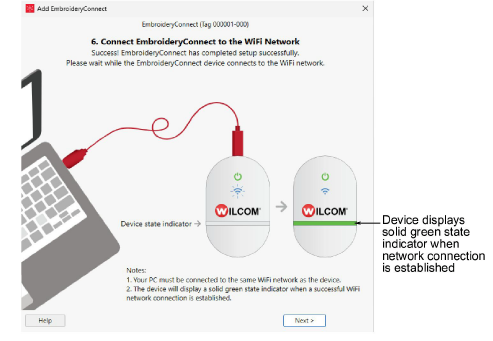
13Wait for the EC device to connect to the network. Connection takes about 15 seconds depending on network traffic.
14Click Next > to proceed. The below dialog appears.
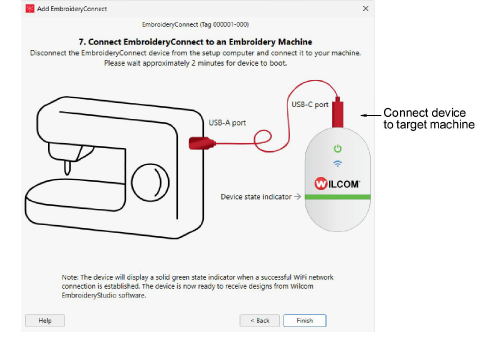
15Click Finish to close the dialog.
16Remove the cable from the EmbroideryHub computer and connect it to the target machine which is within the same Wi-Fi network.
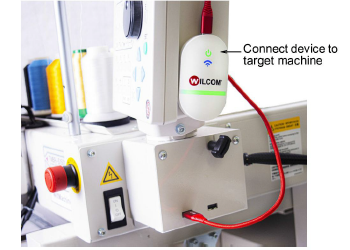
Tip: The EC device comes with 3M mounting strips to attach it to the machine.
17Wait for the EC device to connect to the network. Connection takes about 15 seconds depending on network traffic. The blue Wi-Fi LED will flash and then turn solid blue when it has successfully connected.
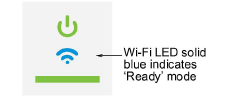
You can now send designs to this device from EmbroideryStudio.
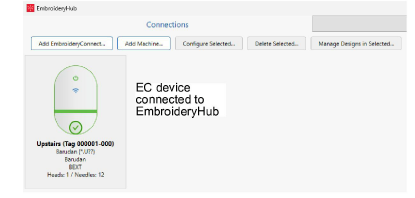
Note: EmbroideryHub needs to remain active at all times in order to send designs to connected devices.
Products
EmbroideryStudio Add-ons
Solutions
Learning
Support
Connect
About Wilcom