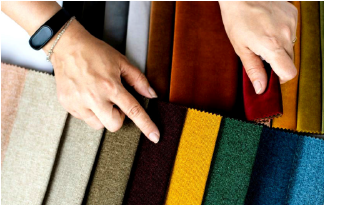
Different fabrics behave differently under needle penetration and thread tension. Stretchy knits, for example, tend to distort or ‘pull in’ more than stable wovens. Auto Fabrics compensate for these variations by adjusting stitch parameters that control density, pull, coverage, and underlay structure.
Rather than replacing all object settings, Auto Fabrics modify only a limited group of core embroidery parameters.
|
Properties |
Typical adjustments |
Purpose |
|
Pull compensation |
Increased on stretchier or thicker fabrics. |
Offsets fabric pull-in to maintain accurate outlines. |
|
Density (stitch spacing) |
Loosened on thick or dense fabrics, tightened on sheer or open weaves. |
Prevents over- or under-stitching, ensuring smooth coverage. |
|
Underlay |
Type and number adjusted – e.g. additional edge or zigzag underlay for knits. |
Stabilizes cover stitches and reduces distortion. |
|
Stitch length / shortening |
Modified for smoother running and adaptability to texture. |
Improves stitch formation and prevents thread breaks. |
|
Corner compensation / Auto Split |
Enabled or increased for dense satins. |
Reduces thread build-up at corners and junctions. |
|
Travel runs and tie-offs |
Adjusted slightly for stability and minimal visibility. |
Ensures seams remain strong while keeping designs neat. |
Auto fabrics sit between template defaults and object properties. They refine base settings to suit fabric behavior, while still allowing you to override individual values at the object level. In short:
3Templates define the starting environment.
3Auto fabrics fine-tune stitch behavior for a chosen material.
3Object properties determine the final, object-specific result.
Auto fabrics thus help ensure that your designs stitch out cleanly and consistently across a variety of materials.
The table below shows how typical Auto Fabric presets modify key embroidery properties to suit different material types. Each preset targets a balance between coverage, stability, and efficiency.
|
Fabric |
Typical adjustments |
Effect / Reason |
|
Cotton (light woven) |
Standard density and pull compensation, minimal underlay. |
Cotton is stable, so only moderate adjustments are needed. Default settings produce smooth, accurate outlines. |
|
Denim / Heavy Twill |
Slightly reduced density (wider spacing), minimal pull comp, longer stitches. |
Thick, rigid fabrics can cause thread buildup – reduced density avoids excess penetration and bulk. |
|
Lycra / Stretch Knit |
Increased pull comp, extra zigzag underlay, slightly reduced stitch density. |
Compensates for high stretch and movement, prevents outlines from pulling in and distorting. |
|
Piqué / Polo Knit |
Extra edge and zigzag underlay, slightly looser density, adjusted stitch lengths. |
Supports uneven surface texture and soft weave, improving stitch hold and surface coverage. |
|
Fleece / Polar Fleece |
Wider stitch spacing, heavy underlay, higher pull comp. |
Thick nap requires strong underlay to prevent sinking and distortion. |
|
Satin / Silk |
Reduced density and pull comp, fine stitch lengths, minimal underlay. |
Prevents puckering and thread shine on delicate, lightweight materials. |
|
Nylon / Sports Fabric |
Extra edge underlay, moderate pull comp, shorter stitches. |
Stabilizes slick surfaces and resists slippage under the needle. |
|
Cap Backing / Structured Cap |
Tighter density, strong edge underlay, increased tie-offs. |
Ensures durability and clarity on stiff or curved surfaces. |
When you select a fabric in the Auto Fabric dialog, EmbroideryStudio automatically applies these parameters across the design. You can still override individual values in Object Properties, but the preset gives you a proven, reliable starting point. Each fabric preset reflects a balance derived from industry testing, ensuring consistent stitch quality without manual recalibration. For example:
3A logo that sews perfectly on cotton may need less density and more pull comp on lycra.
3A high-detail design for satin fabric may need smaller stitches and less underlay to avoid puckering.
By applying auto fabrics intelligently, you adapt once for the fabric, not for every object. This saves time while maintaining quality and consistency.
In practice, the ‘Wide Satin’, ‘Narrow Satin’, and ‘Lettering’ tabs in the Auto Fabric Settings dialog may produce somewhat counter-intuitive results for lettering objects. With Auto Fabric turned on:
3Narrow non-lettering objects may have lettering settings applied.
3Large lettering objects may be treated as ‘wide satin’ or ‘narrow satin’, depending on their width.
3Conversely, a small non-lettering object with satin stitching may be treated as ‘lettering’.
The auto fabric setting is dependent on the width of the satin object. As a rule of thumb:
3If you can fit a 4mm wide circle inside the object, then it is ‘wide satin’.
3if you cannot fit a 2mm circle inside the object, then it is ‘lettering’.
3Anything in between is ‘narrow satin’.
Products
EmbroideryStudio Add-ons
Solutions
Learning
Support
Connect
About Wilcom