The creative possibilities offered by the Multi Blend tool are endless. Bear in mind the following...
3Create multi-color blends and natural shading from a single, editable object.
3Add any number of stitch layers using varied stitch types, fills, and effects.
3Adjust, reorder, or restyle layers individually without compromising object integrity.
3Save and reuse profiles with preferred colors, fill types, and effects for consistency and speed.
3Convert existing Color Blending effects automatically into editable Multi Blend layers.
3Compatible with Complex Fill (Tatami) and Column A/B or C objects, with or without Trapunto and Underlay effects applying.
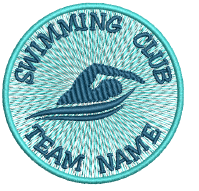
Merge light and dark thread tones to create realistic shading on leaves, feathers, and waves. Perfect for natural transitions in embroidery art. Here we employ layered radial fill effects to create a sense of movement.
Add a third or even fourth layer for mid-tone control, ideal for complex gradients such as skies, metallic sheens, or stylized lettering. Here we combine three layers of accordion spacing with a motif fill overlay.
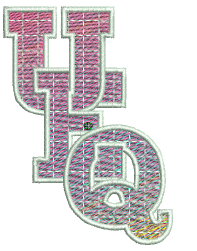
Experiment with stacked coverage and different angles per layer to achieve woven or cross-hatch textures with subtle tonal variation. Here we use Column C utilizing three layers of accordion spacing.

Break apart lettering objects to access their individual components. Apply customized color blends to each segment for sophisticated shading or multi-colored decorative effects. Resequence colors for efficient stitchout.
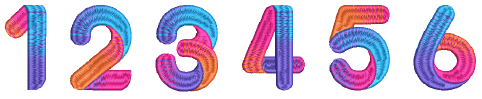
Tip: These letters can be saved as Keyboard Design Collection character sets.
Products
EmbroideryStudio Add-ons
Solutions
Learning
Support
Connect
About Wilcom