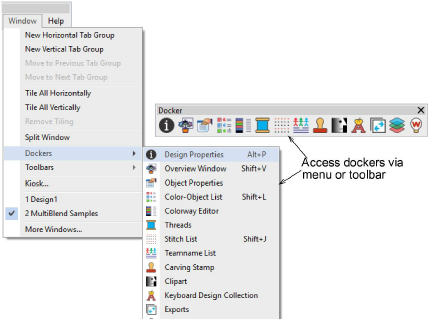
In Wilcom Workspace, dockers are floating or dockable panels that provide precise control and feedback as you work. You can position them on either side of the design window to suit your workflow and screen layout. Access dockers via the Docker toolbar or Window menu. They can be docked on either side of the screen.
There are three dockers that you will use regularly:
|
Docker |
Description |
|
|
|
Object Properties |
The most important is the Object Properties docker. Use it together with the Property Bar to access properties of selected embroidery objects. |
|
|
Color-Object List |
The Color-Object List offers an easy way to selectively view and resequence color blocks and objects. |
|
|
Colorway Editor |
When you create a new design, it includes a single default colorway called ‘Colorway 1’. The Colorway Editor allows you to edit default colors, add extra color slots as required, and set up additional colorways. |
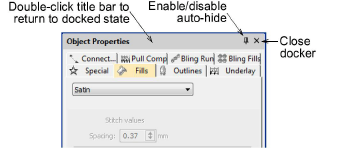
All dockers can be fixed or minimized. Dockers may also be ‘floated’ by dragging the caption bar to the design window or double-clicking it when ‘pinned’ in place. Dockers can be ‘nested’ to increase available workspace. When nested, tabs for each docker appear down the side.
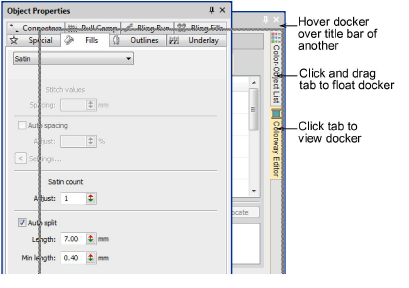
Toggle Auto Hide next to the X close button. Docking panes automatically retract when not in use. By hovering the mouse over the tab, a minimized docker will ‘fly out’, allowing you to access its functions.
Products
EmbroideryStudio Add-ons
Solutions
Learning
Support
Connect
About Wilcom